

At Technical Safety BC, most online exam rewrites happen because of preventative setup issues. Things like missing key software, incorrect or missing photo ID, or closing the exam before your exam video has fully uploaded can all lead to a rewrite and additional exam fees. Before your online exam, use this checklist to get your equipment, software, and exam environment ready so when the time comes you can focus on writing your exam with confidence.
What Systems Will I Be Using?
There are two systems involved in your online exam: the Technical Safety BC (TSBC) exam platform and ProctorTrack. You will also need an Online Services account to receive important exam details, including your exam link, username, and password.
- The TSBC exam platform is where you will complete your exam. You’ll sign in to access your exam questions, and your results will be recorded within the platform.
- ProctorTrack is the tool used to supervise your online exam. It must be installed on your computer and smartphone and helps keep the exam secure by limiting website access, monitoring phone use, and recording your exam session.
Before Exam Day: What to Prepare
Access and Login
- After booking your exam, your exam link, username, and password will be provided on the same day in the My Messages section of your Technical Safety BC Online Services account.
- You will also receive an email booking confirmation with instructions on how to access your exam link, username, and password.
Technical Setup
You will require the following items to complete your exam:
- A desktop or laptop computer (If you are using an additional monitor, it must be connected to your laptop/computer);
- A reliable internet connection;
- A functioning webcam;
- A built-in microphone (headset or external microphones are not permitted);
- A smartphone (used by ProctorTrack to take your ID photo and perform a room scan prior to the exam; the phone will be locked and inaccessible once the exam begins);
- ProctorTrack application installed on your smartphone before your exam day; and
Download ProctorTrack for Smartphone: Google Play | App Store - ProctorTrack application installed on your computer before your exam day. Download ProctorTrack for Desktop.
Before exam day, we strongly recommend testing your setup by:
- Launching the ProctorTrack application on both your computer and smartphone;
- Confirming your webcam and built-in microphone are detected and working;
- Ensuring your internet connection is stable;
- Verifying you can sign in to the exam platform without issues.
On Exam Day
In addition to your smartphone and computer with the ProctorTrack app installed, you will need the following on your exam day.
Exam Environment:
- A quiet, well-lit private room (noone else can be in the room)
- A clear workspace, free of personal items you do not want to be filmed, and any materials not permitted during the exam (see prohibited items)
- All devices should be tested and in working order prior to exam day
Valid Identification:
- A government-issued photo ID (see accepted forms of ID). The name on your ID must match the name provided on your exam application.
Permitted Materials
During the exam, you may use:
- Your own personal scientific calculator, if needed for your exam. Programmable calculators are not allowed.
Note: If a code book is permitted for your exam, only physical (hard-copy) code books may be used. Digital versions are not allowed.
Preparing your materials and exam environment ahead of time sets you up for a smoother exam day and helps you avoid a rewrite.
Accessing Your Exam
On exam day, follow the steps below to access your exam.
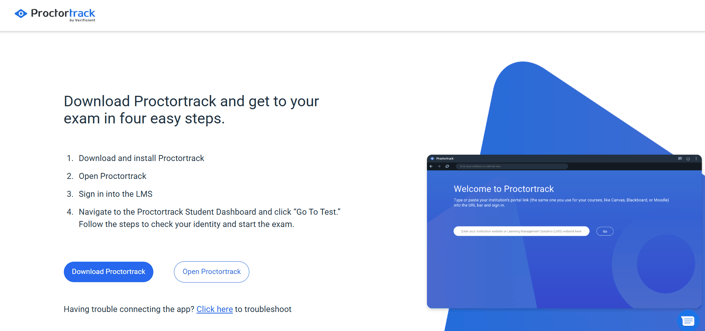
If ProctorTrack is already installed on your computer:
- Visit our ProctorTrack page and select “Open ProctorTrack.”
- Copy and paste your username and password from your My Messages confirmation in Online Services. Right-click may be disabled on the TSBC exam platform, please use keyboard shortcuts to copy and paste your login details. From your confirmation email, highlight and copy (Ctrl-C or Command-C) your 6-digit username, return to the TSBC exam platform login screen, click the Username field, and paste it (Ctrl-V or Command-V). Then copy and paste your 8-digit password using the same method.
.png?width=1745&height=903&name=ProctorTrack%20Browser%20(2).png)
If ProctorTrack is not installed on your computer:
- Visit our ProctorTrack page and click “Download ProctorTrack.”
- Once the download is complete, open the file and install ProctorTrack, then return to the same page and select “Open ProctorTrack.” Alternatively, you can copy and paste your exam link into the link bar in the ProctorTrack browser.
.png?width=1745&height=903&name=ProctorTrack%20Browser%20(1).png)
- When prompted, copy and paste the username and password from your My Messages confirmation in Online Services. Please use keyboard shortcuts to copy and paste your login details as right click on your mouse may be disabled. From your confirmation email, highlight and copy (Ctrl-C or Command-C) your 6-digit username, return to the TSBC exam platform login screen, click the Username field, and paste it (Ctrl-V or Command-V). Then copy and paste your 8-digit password using the same method.
After you complete your exam, ProctorTrack will upload a video recording of your exam session. Please remain logged in until the upload is fully complete. If the upload becomes stuck, you may close the window and relaunch the ProctorTrack software to resume the upload (no login is required; simply reopening the window is sufficient). If the upload still does not complete successfully, click the "Support" button to connect with an agent who can assist with retrieving the video. Failure to successfully upload the video may result in an exam rewrite.
Navigating Your Exam
Once your exam begins, keep the following tips in mind:
- Use the Next Page and Previous Page buttons to move through questions. Do not use your browser’s back button.
- You can also open or close the question grid on the right side by clicking the arrow. The grid allows you to jump directly to any question.
- Your answers are saved automatically when selected and you may change your answer at any time during your exam.
- You can adjust font size by using the “+” button on the top right corner of the screen.
- The exam timer is always visible, but you may hide if you prefer.
Final Reminders
- Close all unnecessary programs and browser tabs before starting your exam.
- If setup takes longer than expected, don’t worry — your exam timer will not begin until setup is complete.
- If you need to rebook, you must do so at least two days before an online exam to avoid a rebooking fee.
For more information and detailed exam resources, please see our online exam page or read our full technical manual.